


Table of Contents
- What You'll Need Before Starting
- Step-by-Step: Connecting Your Smart Thermometer to a Health App
- Best Home Health Apps for Fever Tracking
- How to Share Health Data With Healthcare Providers
- Troubleshooting Smart Medical Device Connectivity
- Common Mistakes to Avoid During Setup
- Maintaining Accuracy and Security in Your Smart Thermometer Setup
- Frequently Asked Questions
Last Updated: September 21, 2026
What You'll Need Before Starting
Before learning how to integrate smart thermometers with home health apps, gather: a smartphone or tablet with Bluetooth capability, your smart thermometer, the health app you plan to use, your thermometer's manual, and a strong Wi-Fi connection. Ensure your phone's Bluetooth is enabled and download the health app before pairing. Establishing this digital connection serves as a foundational step toward creating a comprehensive home wellness sanctuary where health data informs every aspect of your living environment.
What to prepare:
- Smartphone or tablet with Bluetooth enabled
- Smart thermometer with fresh batteries
- Health app downloaded and ready
- Thermometer manual or setup guide
- Strong Wi-Fi connection for initial setup
Step-by-Step: Connecting Your Smart Thermometer to a Health App
Connecting your smart thermometer to a health app typically takes 10-15 minutes. Understanding the full workflow prevents silent failures where pairing appears successful but data never syncs.
Step 1: Download and Set Up Your Health App
Download your chosen health app from your phone's app store and create an account. Follow the app's onboarding prompts, which typically ask for basic health information like age, weight, and existing health conditions to ensure accurate reading interpretation.
Grant Bluetooth and storage permissions so the app can communicate with your thermometer and store readings locally. You can deny location and camera access unless the app specifically requires them.
Compatibility check: Before proceeding, verify your thermometer model is listed in the app's supported devices section. This is usually found in Settings > Supported Devices or on the app's help page. If your thermometer isn't listed, the pairing will fail or readings won't sync even if pairing appears successful.
Step 2: Enable Bluetooth and Prepare Your Thermometer
Turn on Bluetooth in your phone's settings (Settings > Bluetooth). Prepare your thermometer by turning it on and inserting fresh batteries if needed, low battery is a common cause of pairing failures.
Put your thermometer into pairing mode by pressing a specific button or holding it until a light blinks or a Bluetooth icon appears. Consult your thermometer's manual for the exact button sequence.
Timing matters: Most thermometers stay in pairing mode for only 2-3 minutes before timing out. Have your phone ready and the app open before putting your thermometer into pairing mode.
Step 3: Pair Your Thermometer With the App
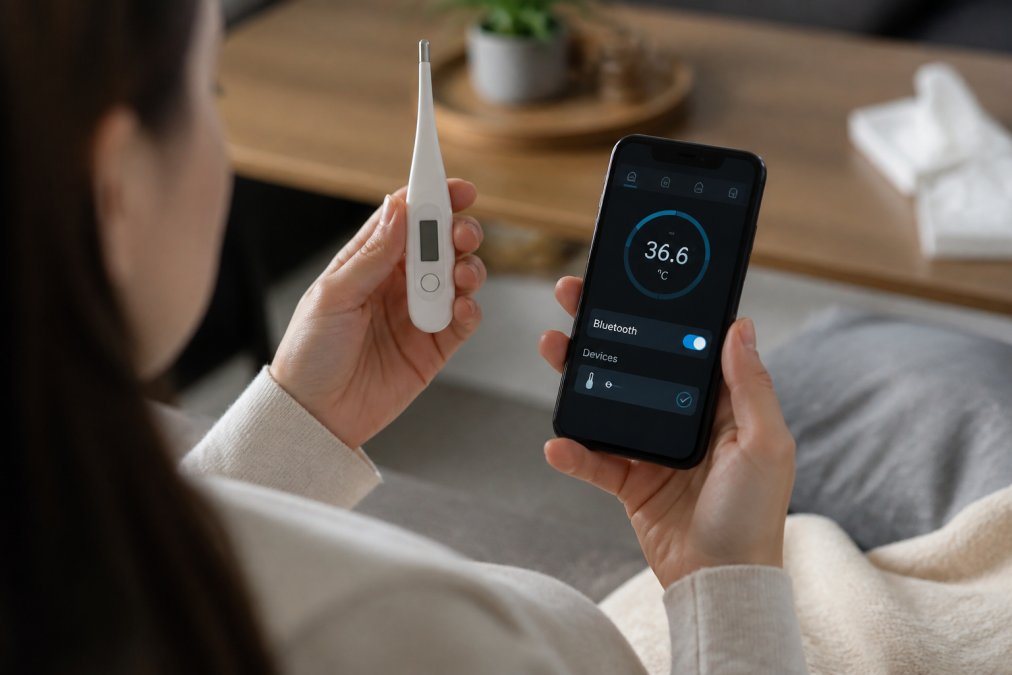
Open the health app and tap "Connect Device," "Add Device," or "Pair Thermometer." The app will search for nearby Bluetooth devices. Your thermometer should appear within 30 seconds. Select your thermometer's name from the list.
Confirm the pairing request on both your phone and thermometer. Your phone may display a pairing code or a simple confirmation prompt. Your thermometer may ask you to confirm the connection on its screen or via a button press. Once both devices confirm, they're paired and ready to use.
What "paired" actually means: Pairing establishes a Bluetooth connection between devices, but it does not guarantee data will sync. Pairing is just the first step. The app must also be configured to receive data from that specific thermometer.
Step 4: Configure Data Sync and Take Your First Reading
After pairing, verify your thermometer is marked as "Active" or "Primary" in Settings > Devices or Connected Devices.
Take your first temperature reading and check your health app immediately. The reading should appear within 30 seconds to 2 minutes.
If the reading appears: Your sync is working correctly. Your smart thermometer is now integrated with your health app. You can begin using it for regular temperature monitoring.
If the reading doesn't appear after 2 minutes: Refresh the app, verify Bluetooth is enabled, take another reading, and check notification settings. If sync still fails, restart both devices and repeat pairing. If pairing succeeds but sync consistently fails, uninstall and reinstall the health app to clear corrupted data.
Best Home Health Apps for Fever Tracking
Apple Health integrates seamlessly with Apple devices and many third-party thermometers. Google Fit works across Android devices and connects to hundreds of health devices. MyChart lets you share data directly with healthcare providers. Fitbit tracks temperature alongside other vital signs. Withings Health Mate works specifically with Withings thermometers and sends fever alerts.
How to Share Health Data With Healthcare Providers
Open your health app and look for a "Share" or "Export" option. Select your temperature readings and choose your healthcare provider. If your provider uses MyChart or Epic, the app may connect directly. Otherwise, export as a PDF or CSV file and email it to your provider. Ask your provider which method they prefer.
Troubleshooting Smart Medical Device Connectivity
Distinguishing between a pairing issue, a sync issue, and a false alarm is critical. Most users assume their device is broken when the real problem is a simple configuration step they missed.
Understanding the Difference Between Pairing and Syncing
"Paired" and "syncing" are not the same. A thermometer can be paired (Bluetooth connection established) but not syncing (data not flowing to the app). The fix differs for each problem.
Pairing problem signs:
- Thermometer doesn't appear in the app's device list
- Pairing code doesn't match between phone and thermometer
- Connection times out before completing
Syncing problem signs:
Berflow Dual-Mode Contactless Digital →
- Thermometer is listed as "Connected" in the app, but readings don't appear
- First reading synced, but subsequent readings don't
- Readings appear hours later instead of immediately
Troubleshooting by Symptom
Thermometer not appearing in app (pairing failure):
Restart your thermometer by removing batteries for 10 seconds, then reinserting them. Confirm your phone's Bluetooth is on and you're in the app's device-pairing screen. If the thermometer doesn't appear after 30 seconds, move your phone and thermometer within 3 feet. If pairing fails, go to your phone's Bluetooth settings and "Forget" the thermometer, then try pairing again. If pairing still fails after three attempts, delete and reinstall the app.
Temperature readings not syncing (pairing successful, data not flowing):
Confirm Bluetooth is connected (shows "Connected," not just "Paired"). Verify the app has Bluetooth permission in Settings > Apps > [Your Health App] > Permissions. Check your app's settings for "Background Sync" or "Auto-Sync" and enable it. Enable notifications for your health app. Confirm your phone is connected to Wi-Fi or cellular data.
App crashes when opening:
Update your health app to the latest version. If it still crashes, clear the app's cache (Settings > Apps > [Your Health App] > Storage > Clear Cache). Do not select "Clear Data," as this will erase your account and stored readings.
Slow syncing (readings appear 5+ minutes later):
Move closer to your thermometer (within 30 feet). Reduce interference by moving away from microwaves, Wi-Fi routers, and other wireless devices. Disconnect other Bluetooth devices (smartwatch, speaker, car system) to free up bandwidth. Disable low-power mode or battery saver mode.
Bluetooth keeps disconnecting:
Check your phone's Bluetooth settings for an "Auto-Disconnect" or "Timeout" option and disable it. Ensure your thermometer's batteries are fresh. If disconnections persist, unpair the device completely by selecting "Forget This Device" in Bluetooth settings, then pair again.
When to Stop Troubleshooting and Seek Help
If the problem persists, contact your thermometer manufacturer's customer support with your thermometer model number, phone model and OS version, health app name and version, a description of the problem, and the steps you've already tried. Most manufacturers offer email or chat support and can resolve issues within 24 hours.
Psychological Barriers to Troubleshooting
Many users give up on smart health devices not because the device is broken, but because troubleshooting feels overwhelming or they're anxious about doing something wrong. Remember: you cannot damage your thermometer or phone by attempting these troubleshooting steps. Restarting devices, clearing caches, and unpairing/repairing are standard maintenance tasks that professionals perform regularly.
If you're uncomfortable with technical steps, ask a family member or friend to help, or contact your thermometer manufacturer's support line. Support representatives can often walk you through troubleshooting over the phone or via chat.
Common Mistakes to Avoid During Setup
Many people make simple mistakes during setup that delay their success. Knowing these pitfalls helps you avoid them.
Not enabling Bluetooth before pairing: Bluetooth must be on for your phone to find your thermometer. This is the most common mistake. Always turn on Bluetooth before attempting to pair any device.
Skipping the app setup steps: Health apps ask for permissions and health information for a reason.
Maintaining Accuracy and Security in Your Smart Thermometer Setup
Once your smart thermometer is connected, maintaining accuracy and security keeps your health data reliable and protected.
Frequently Asked Questions
How do I sync my smart thermometer to my smartphone?
Most smart thermometers connect via Bluetooth. First, download the compatible health app and create an account. Enable Bluetooth on your phone, then put your thermometer in pairing mode (usually by holding a button for 3-5 seconds). Select the thermometer from the app's device list to complete pairing. Take a test reading to confirm the sync is working. If pairing fails, restart both devices and try again.
Which home health apps are compatible with smart thermometers?
Compatibility depends on your thermometer brand. Popular options include Apple Health, Google Fit, and manufacturer-specific apps like those from Withings or Kinsa. Check your thermometer's documentation or the manufacturer's website for a list of supported apps. Some thermometers sync with multiple platforms, while others work with just one ecosystem. Before purchasing, verify that your preferred health app supports your chosen thermometer model.
Can I share smart thermometer data directly with my doctor?
Many health apps allow you to export temperature data or grant your healthcare provider access to your readings. Check your app's settings for sharing options, most have a "Share with Provider" or "Export Data" feature. Your doctor may need to request access or you may need to send them a report manually. Some integrated health systems allow direct sharing within their patient portal, but this varies by provider and app.
What should I do if my smart thermometer won't connect to the app?
Start by ensuring Bluetooth is enabled on both your phone and thermometer, and that they're within 30 feet of each other. Restart both devices and try pairing again. Check that you're using the correct app version and that your phone's operating system is up to date. If the thermometer is already paired to another device, disconnect it first. If problems persist, reset the thermometer to factory settings per the manual and attempt pairing from scratch.

